Items
Items
Dashboard
Dashboard
Purchase Orders
Purchase Orders
Package slips
Package slips
Suppliers
Suppliers
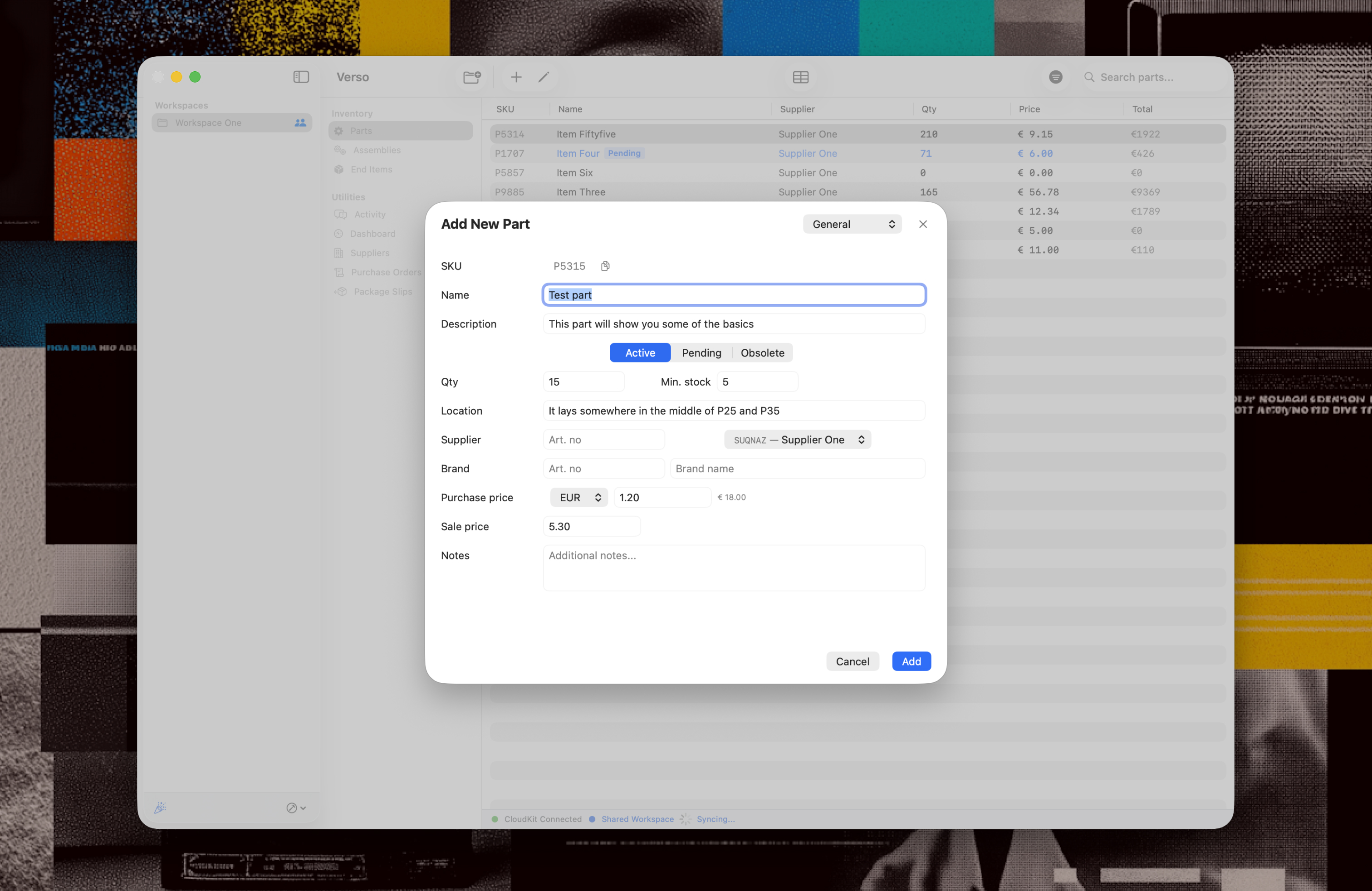
Using Verso starts with creating the digital variant of your physical product. In this case an entry in 'Parts'. With parts you can create 'Assemblies' and/or 'End Items'.


Parts

A part is a digital representation of a physical item in your warehouse.
An assembly is a collection of parts, mostly 'assembled' parts or it could be a collection of parts. The 'Assemblies' within Verso also functions as 'subassemblies', as an assembly can hold easily multiple levels in the 'Bill of Materials'.


If you start building your inventory decide on a naming strategy upfront, before you make the common inventory mistakes.

Assemblies / End Item

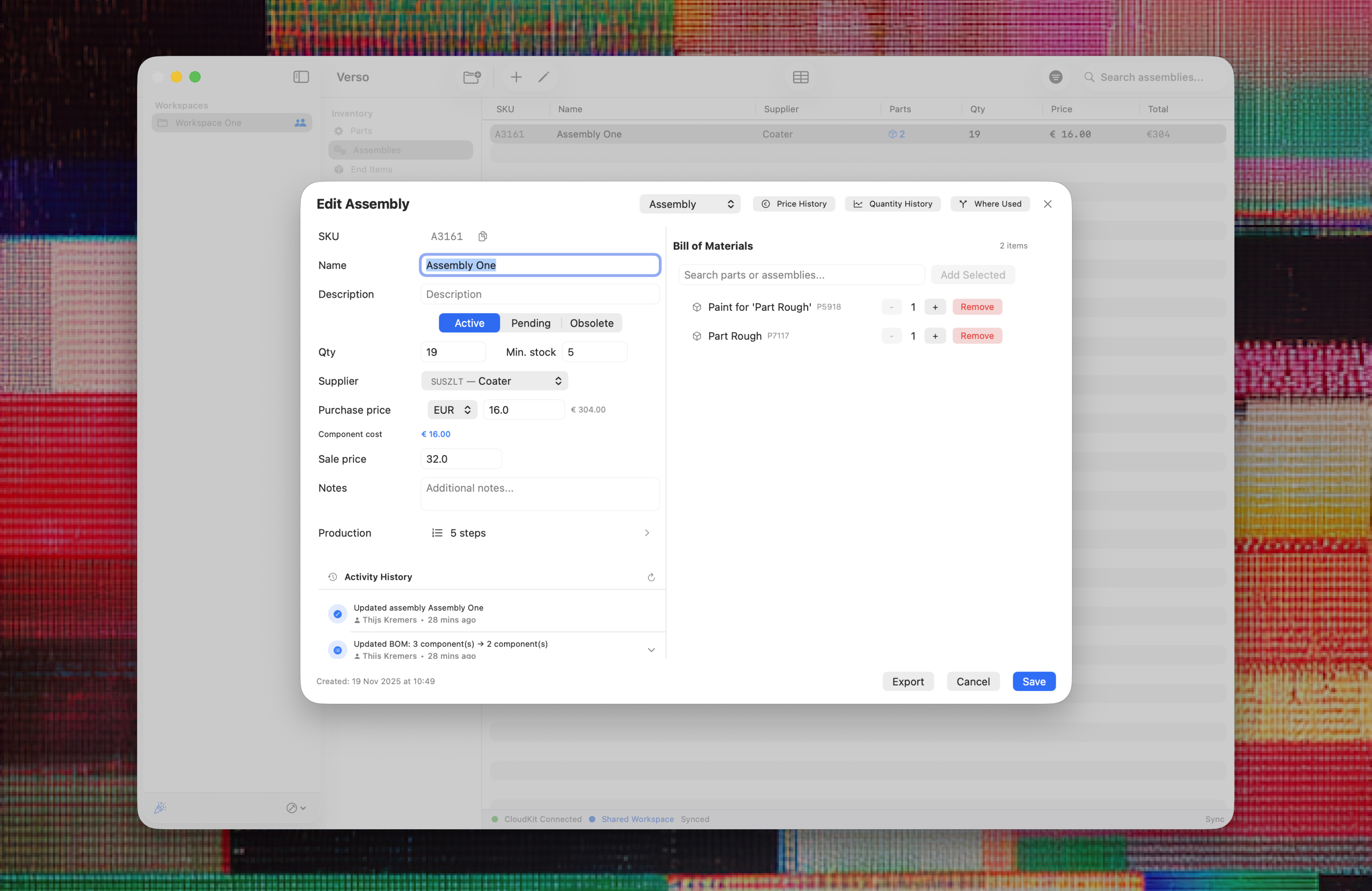
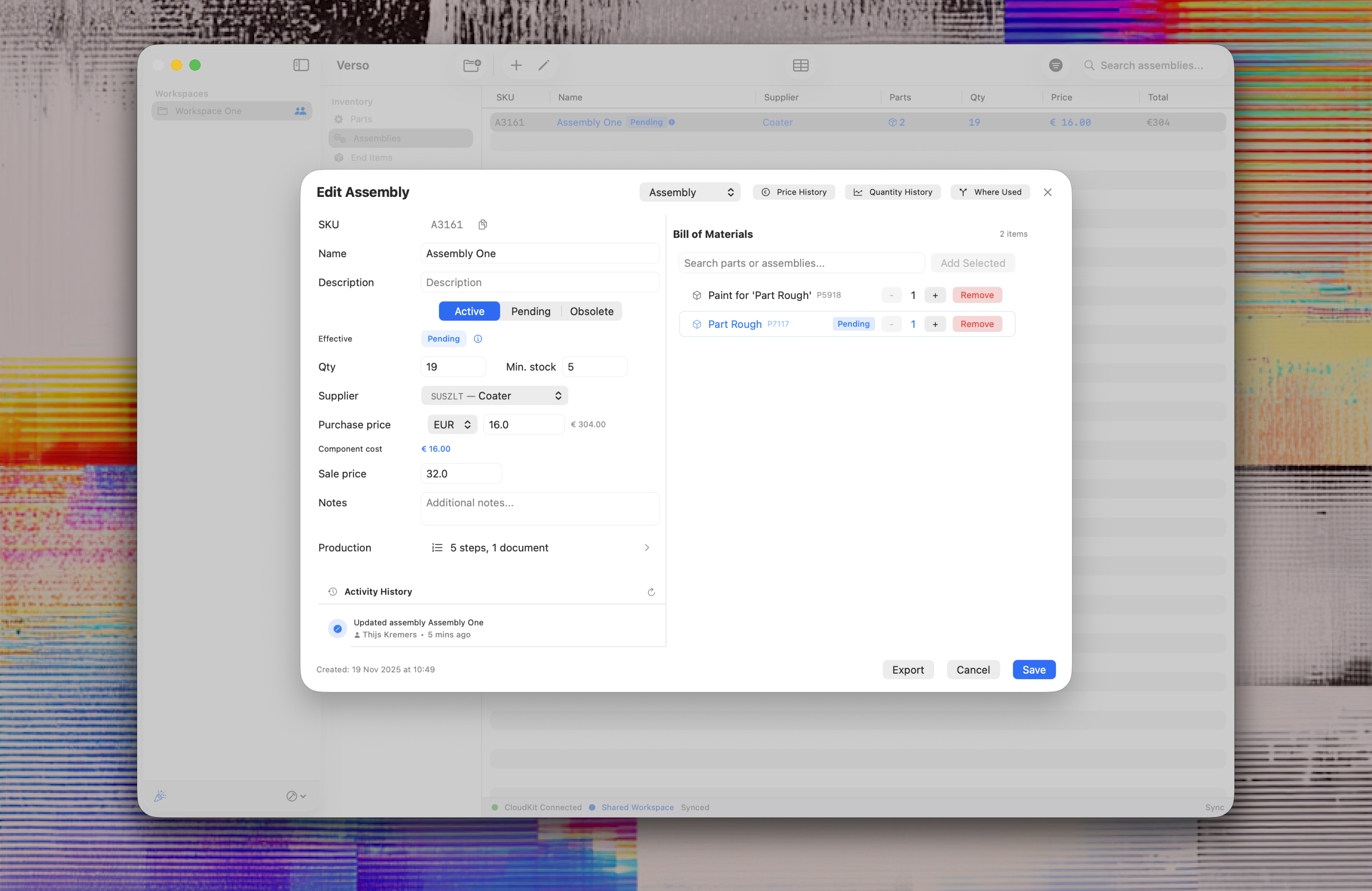
Assemblies and end items are collections of parts, assembled or bundled in someway. Each are created with basic meta-information, however the main information is the 'Bill of Materials'. The BOM specifies what parts and sub-assemblies define the product and the amounts of these parts and sub-assemblies.

End Items differ slightly as they are normally used to define products that are being sold, so the highest level in the BOM, however this is not necessary. End-item differ from assemblies from having the ability to attach a serial number to the item, so you can link physical attributes to your digital representation. These BOM's with qty 0 can be kept as an archive of how the product is assembled.

Production instructions

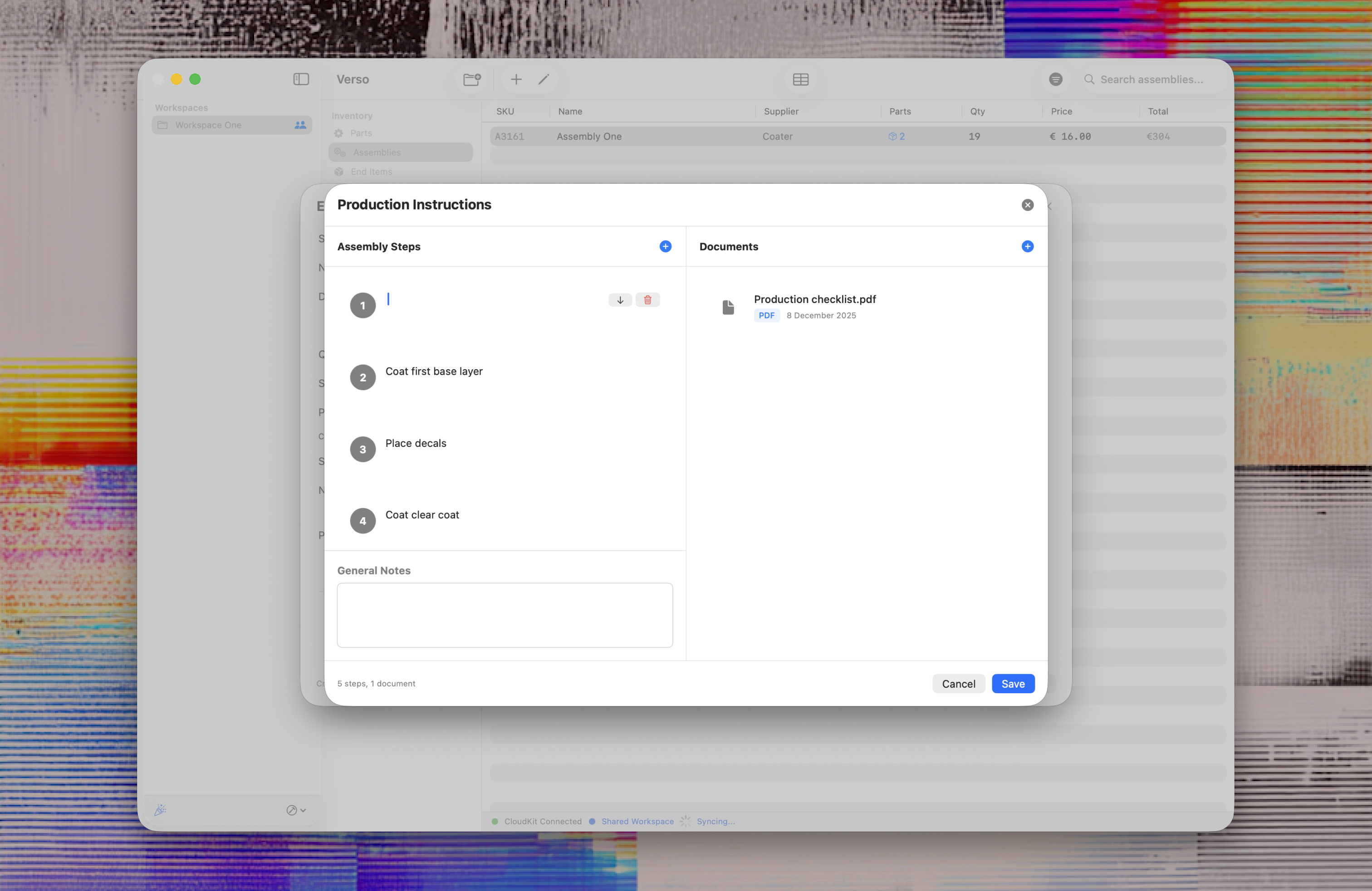
Assemblies and End Items can also hold 'Production Instructions'. You can add it right into Verso with assembly steps. These steps can hold text as instructions. Besides steps you are able to add documentation in PDF or CSV files.

All steps and PDF' attached (CSV are excluded) are exported in a neat PDF that hold all BOM and production information of the Assembly or End Item.

Insight in every item

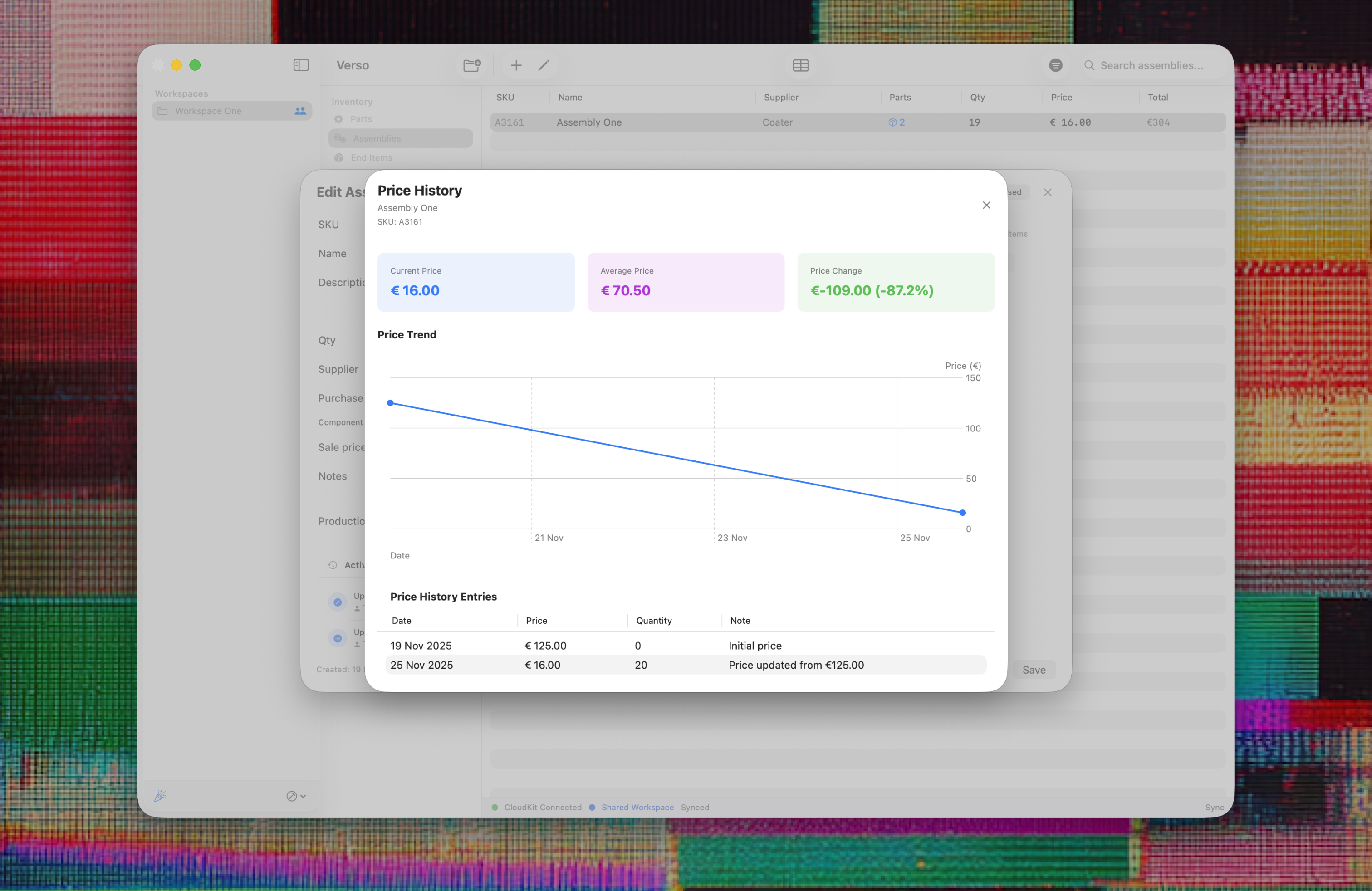
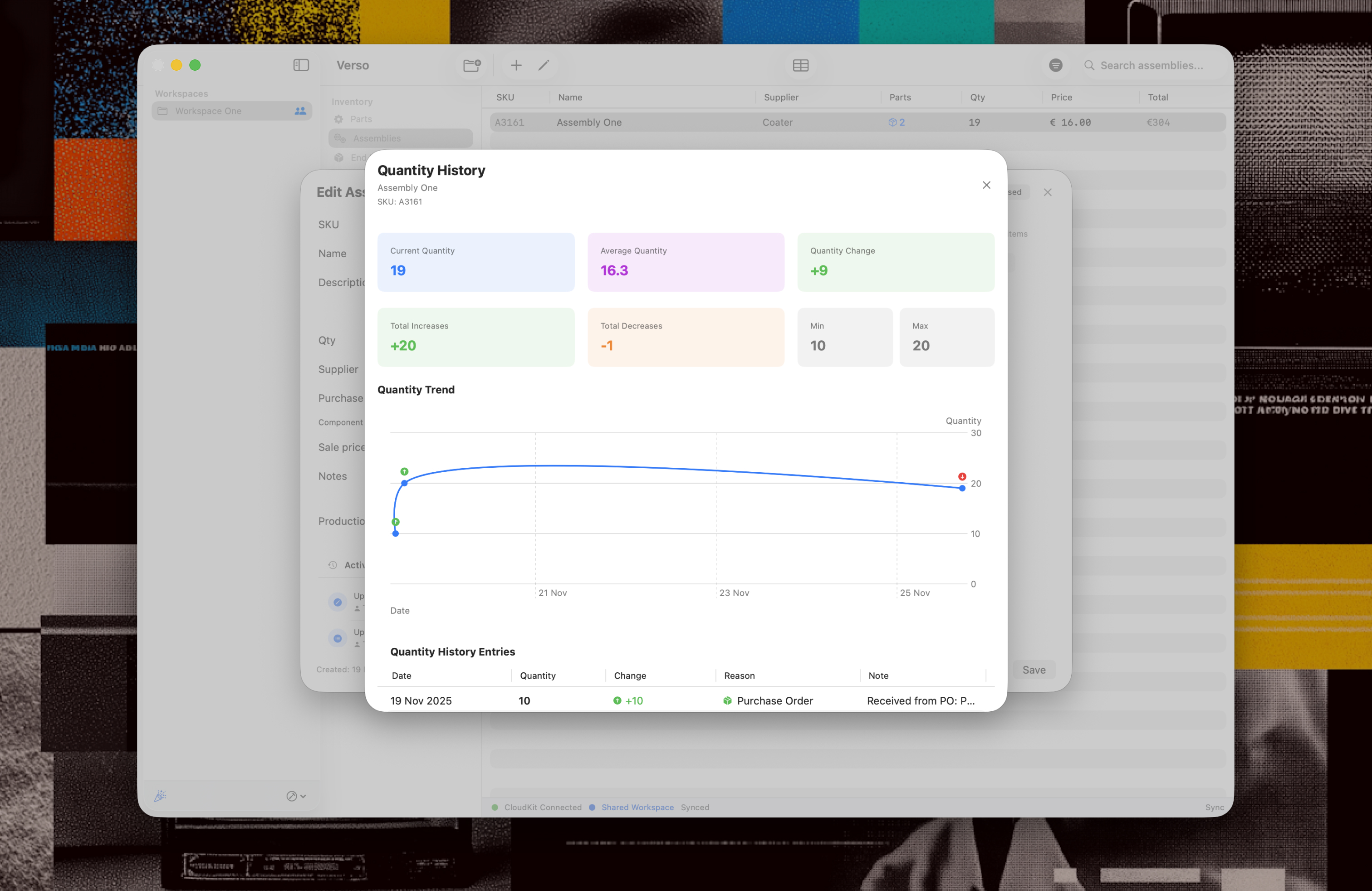
Every item (parts, assemblies or end items) keep track of any activity. These activities are shown in the item over view. More specific the Price and Quantity are stored and shown in a graph for each item. In the right top corner the menu windows can be opened to unlock these insights.

Cascading statuses and where used

All items come with a status attribute. 'Active', 'Pending' or 'Obsolete'. Each view can be filtered on the status, but also each status comes with an own corresponding color in the overview. If a part also lives in a BOM and gets a different status besides 'Active' the parent items (assemblies and/or end items) will become 'Pending'. This way your overview gives clarity of the status of your items.

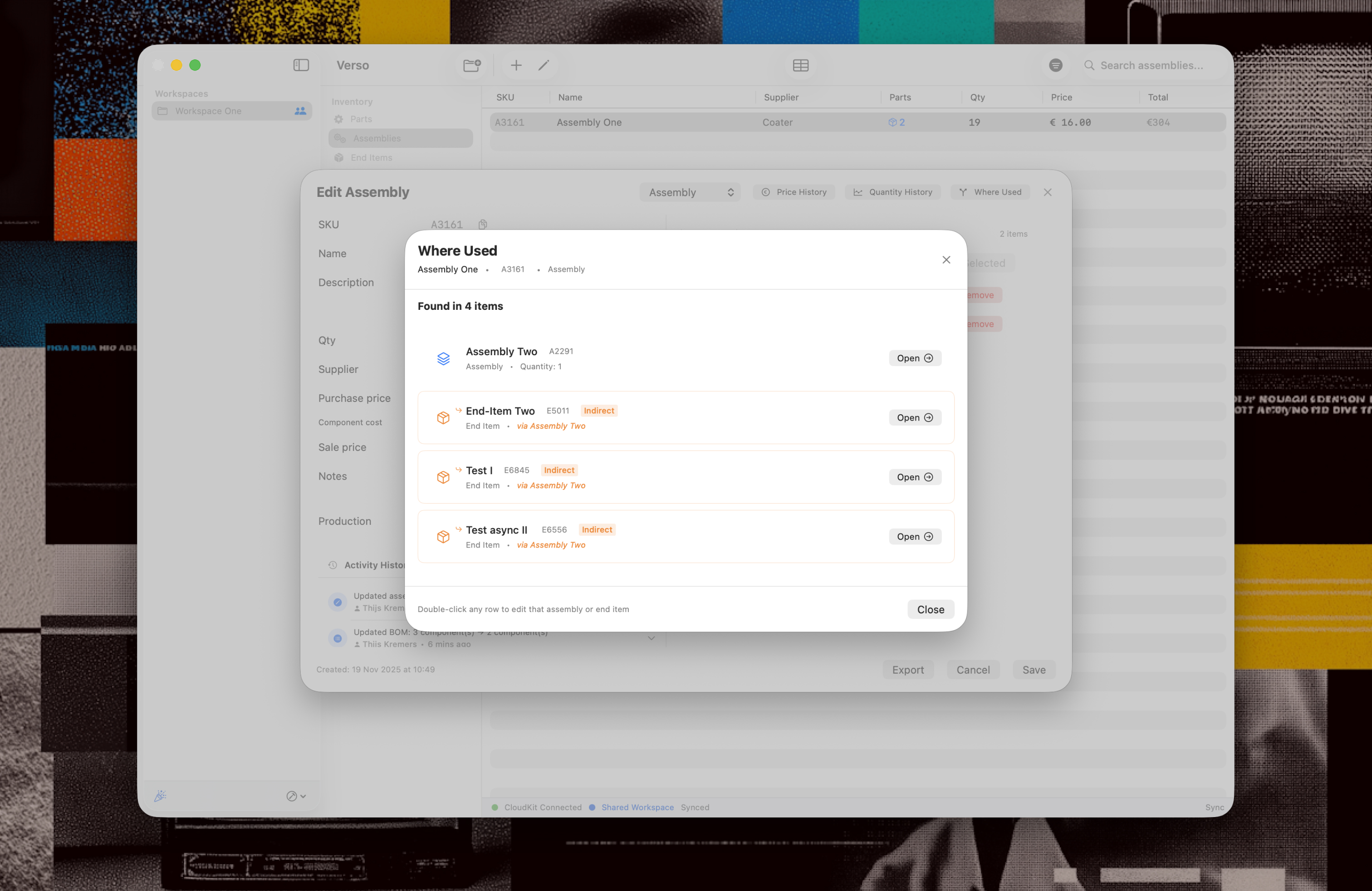
The 'Where used' function can be found in the top right corner of the item overview. This will open up a window showing a list of assemblies/end items where the specific item is used in your inventory.

In this way you can always track down if a part is being replaced or is end-of-life to replace it properly and don't miss a potential stock failure.